
Guides
Slow downloads: the four settings that actually help
Speed depends on your line and the server, but a few settings in Persian Download Manager decide how much of it you get.
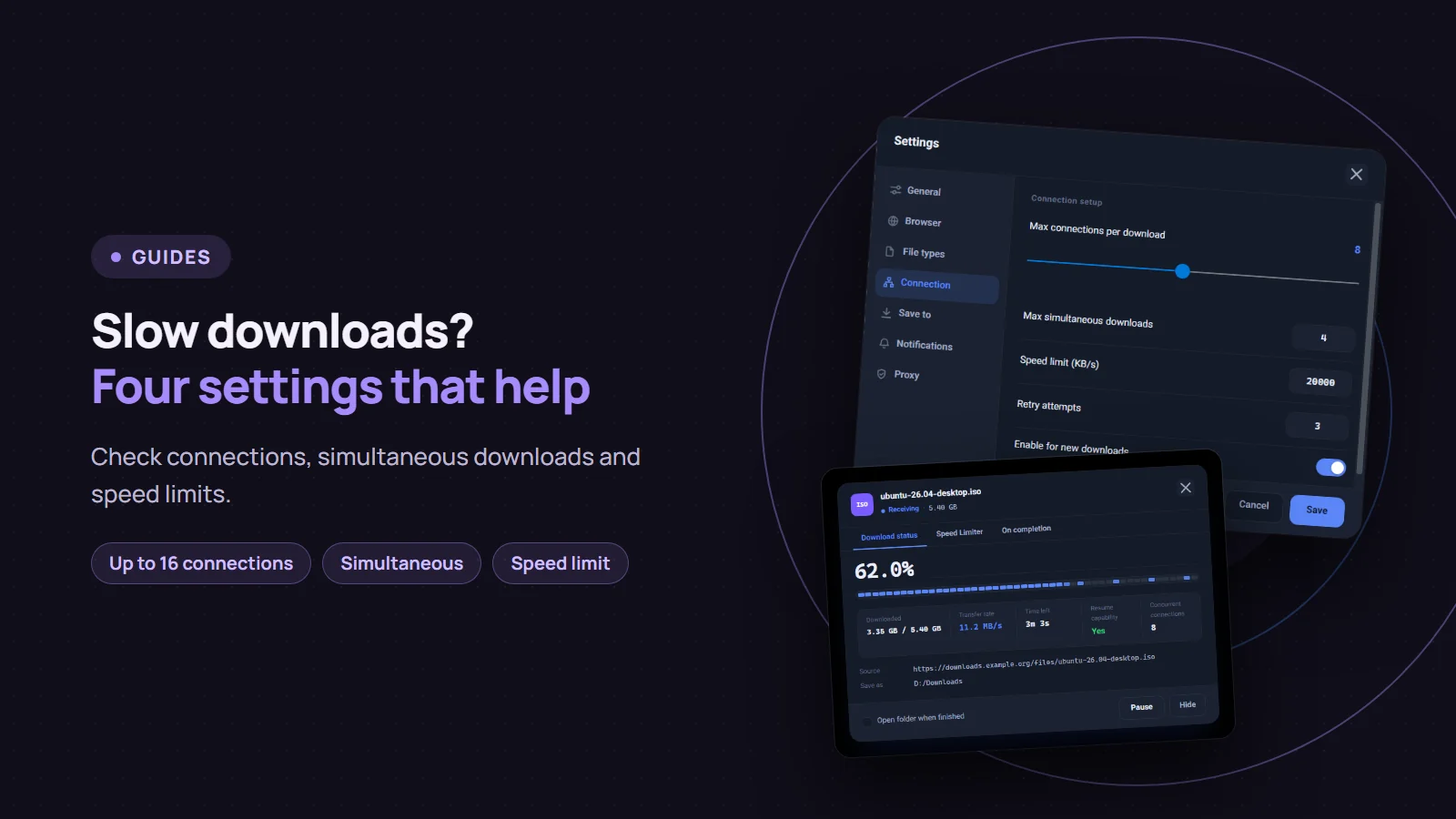
Three things set a download's speed: the speed of your internet line, the speed of the server holding the file, and how many connections the file is fetched with. No download manager can beat the first two. Persian Download Manager (PDM) controls the third, and how your line is shared between downloads. This post covers which settings to check and which expectations are wrong.
1. Connections per download
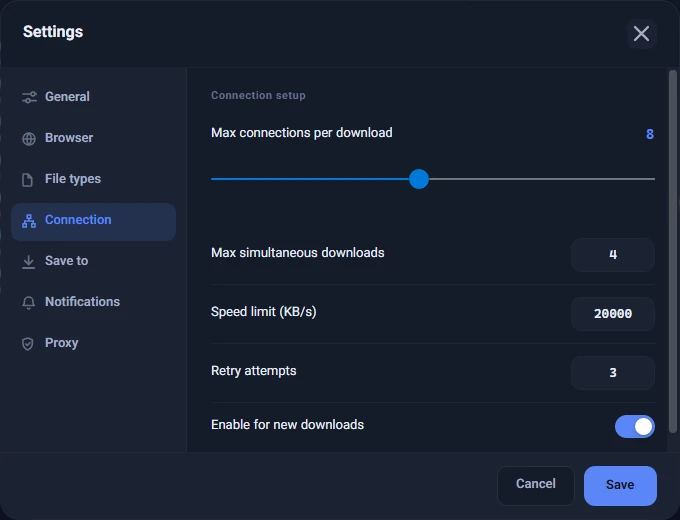
PDM splits a file into parts and fetches the parts at the same time. The setting is the "Max connections per download" slider in Settings → Connection, from 1 to 16. The default is 8.
The slider is not the only factor, because PDM also ties the number of parts to the file's size:
| File size | Connections |
|---|---|
| Under 1 MB | 1 |
| Up to 32 MB | at most 2 |
| Up to 512 MB | at most 4 |
| Over 512 MB | up to the slider's value |
So for a 100 MB file, PDM opens four connections even if the slider is at 16. More connections are not always faster, either: some servers close or slow down many parallel connections. If a download got worse after you raised the number, lower it again.
2. Why one connection is sometimes all you get
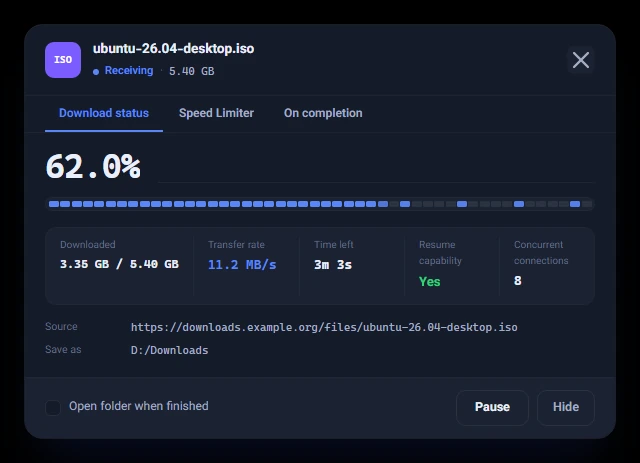
Multi-part downloading has two requirements: the server must be able to serve "from the middle of the file" (technically, an HTTP Range request) and it must report the file's size up front. If it does neither, a single connection is the correct behaviour, not a fault. In that case the download progress window says "This server does not support resume or multiple connections".
Settings cannot change that. If the same file is available from another server or mirror, try that one.
3. Simultaneous downloads share the line
When several files download together, the bandwidth is divided between them and none finishes early. "Max simultaneous downloads", on the same Connection page, decides how many files run at once; the rest wait in the queue. If one important file should finish first, lower that number or pause the others.
4. Check the speed limit
A limit can be set in two places:
- For the whole app: the "Speed limit (KB/s)" box in Settings → Connection. A value of 0 means no limit.
- For one file: right-click the download and choose "Set speed limit…".
When both are active, the lower of the two applies; they are not added together. If a download is slow for no clear reason, first make sure no limit is left on it or on the whole app. A per-file limit is shown beside its row with a ≤ mark.
If it is still slow
- Try the same file in your browser. If it is slow there too, the cause is the server or your line, not the app.
- Change the time. Servers and lines are slower at busy hours. Schedule big downloads for a quieter time with the queue's scheduler.
- Check your proxy. If you use one, every download takes one extra hop. Its settings are in Settings → Proxy.
- If a download keeps dropping, read resuming a broken download.
There is a shorter guide to the same settings in Increase speed and limit bandwidth. Persian Download Manager is free; get the Windows version from the download page.