
Guides
How to see how much data your PC uses
See your data use in your provider account, Windows settings and the PDM usage report, and learn why the three numbers differ.
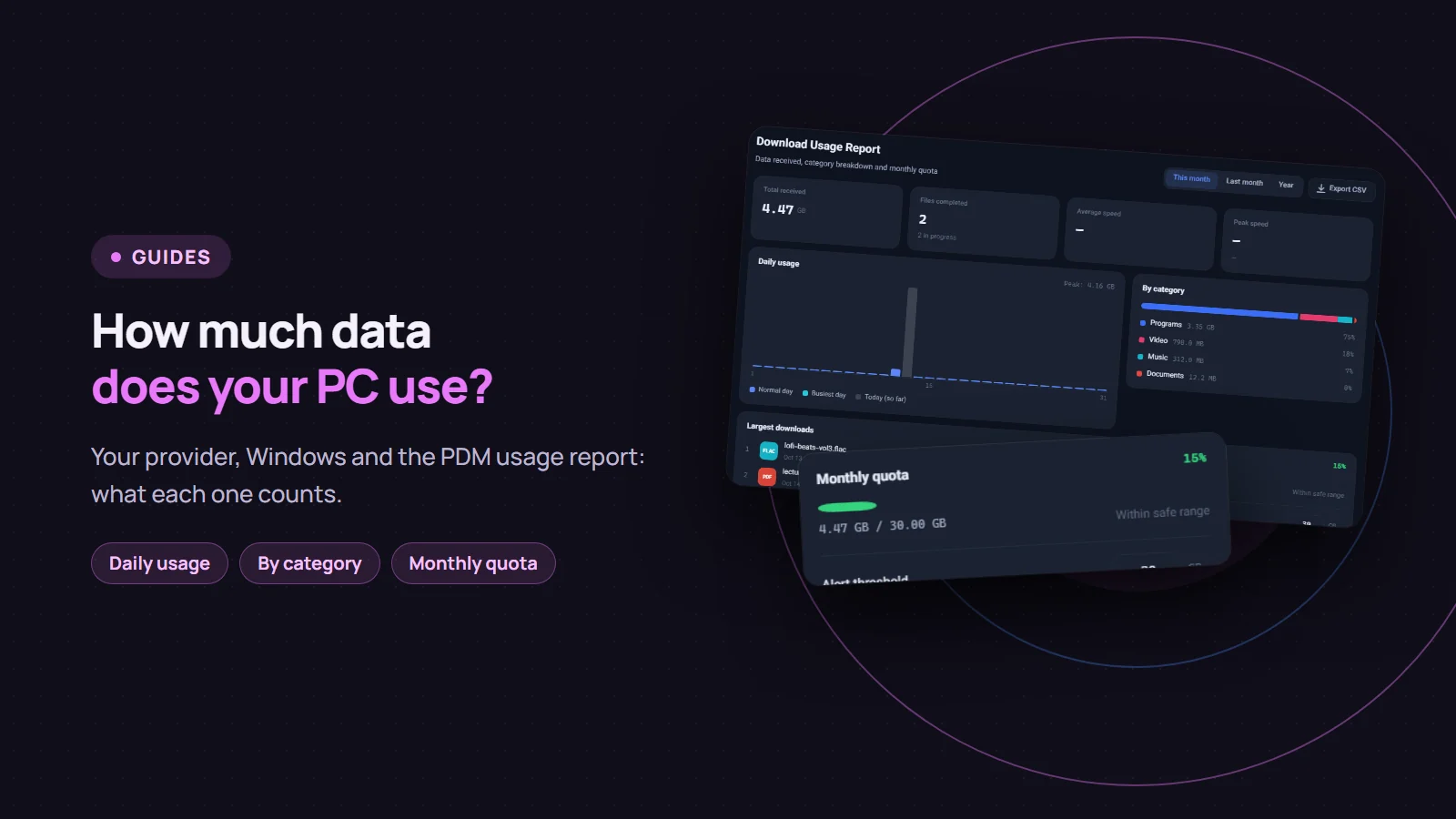
There are three places to see your data use, and each one counts something different. Your internet provider's account shows the number you pay for. Windows shows how much each app on this PC used. The usage report in Persian Download Manager (PDM) counts only PDM's own downloads, but month by month and in detail. This post covers all three and why their numbers do not match.
Data use per app in Windows
Windows keeps the last 30 days of data use for each app:
- Windows 11: go to
Settings › Network & internet › Advanced network settings › Data usage. It lists the apps and how much each used, per network (Wi-Fi or Ethernet), andEnter limitsets a cap for that network. - Windows 10: in
Settings › Network & Internet, openData usage.
This counts every app on this PC, from the browser to Windows Update, but not your phone or other devices on the same router.
The download usage report in PDM
Click "Usage report" in PDM's sidebar. At the top there are three periods: "This month", "Last month" and "Year".
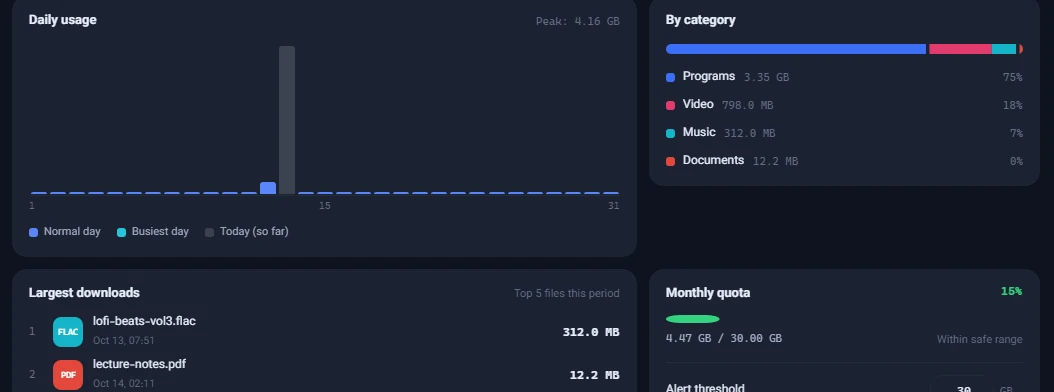
What the page shows:
- "Total received" and "Files completed" for the chosen period.
- "Daily usage": a chart of the days of the month. The "Busiest day" has its own colour, and "Today (so far)" includes downloads still running.
- "By category": how much of the volume went to video, programs, music, documents and the rest.
- "Largest downloads": the five biggest files of the period.
- "Average speed" and "Peak speed". Peak speed is the average speed of the fastest file, not a momentary reading; PDM does not store momentary speeds.
- "Export CSV" saves the whole report to a file that opens correctly in Excel.
A few notes on how these numbers are counted:
- Each file's size counts on the day its download finished, not the day it started.
- A download that is still running appears only in "Today (so far)", and moves to its own day once it finishes.
- If you remove a download from PDM's list, it also leaves the report. To keep a record, use "Export CSV" before you clear the list.
The monthly quota
If your plan has a monthly allowance, type it in gigabytes into "Alert threshold" under "Monthly quota". The quota card shows what share of it PDM's downloads have used and changes colour: under 80% it says "Within safe range", from 80% to 100% "Approaching cap", and above that "Over cap".
The quota sends no message or notification and does not stop downloads. It only shows the state on this page, so check it now and then. Because it counts only PDM's downloads, it will show less than your real use if other apps use a lot of data too.
Why the numbers do not match
- Your provider counts everything: every app and every device that uses the same line or router.
- Windows counts only this PC, but all of its apps.
- PDM's report counts only PDM's downloads.
- Every download uses a little more than the file's size, because the conversation with the server travels over the line too. The extra is usually tiny.
How to use less data
- Pick a lower video quality. For a lesson, 480p is usually enough, and "audio only" cuts the size a lot for something you only listen to; see downloading Aparat videos for an example.
- A speed limit does not save data. It only slows the download so the rest of your connection stays usable; the file is the same size.
- Mark the connection as metered. In Windows, turn on
Metered connectionfor your Wi-Fi or Ethernet so Windows downloads fewer updates on its own.
Persian Download Manager is free; get the Windows version from the download page. The Android app also has its own data plan manager for your phone's plan; read about it in Persian Download Manager is now on Android.