
Guides
How to check that a downloaded file is intact (SHA-256)
A checksum shows a download is complete and unchanged. Check SHA-256 in Persian Download Manager, on Windows and on Linux.
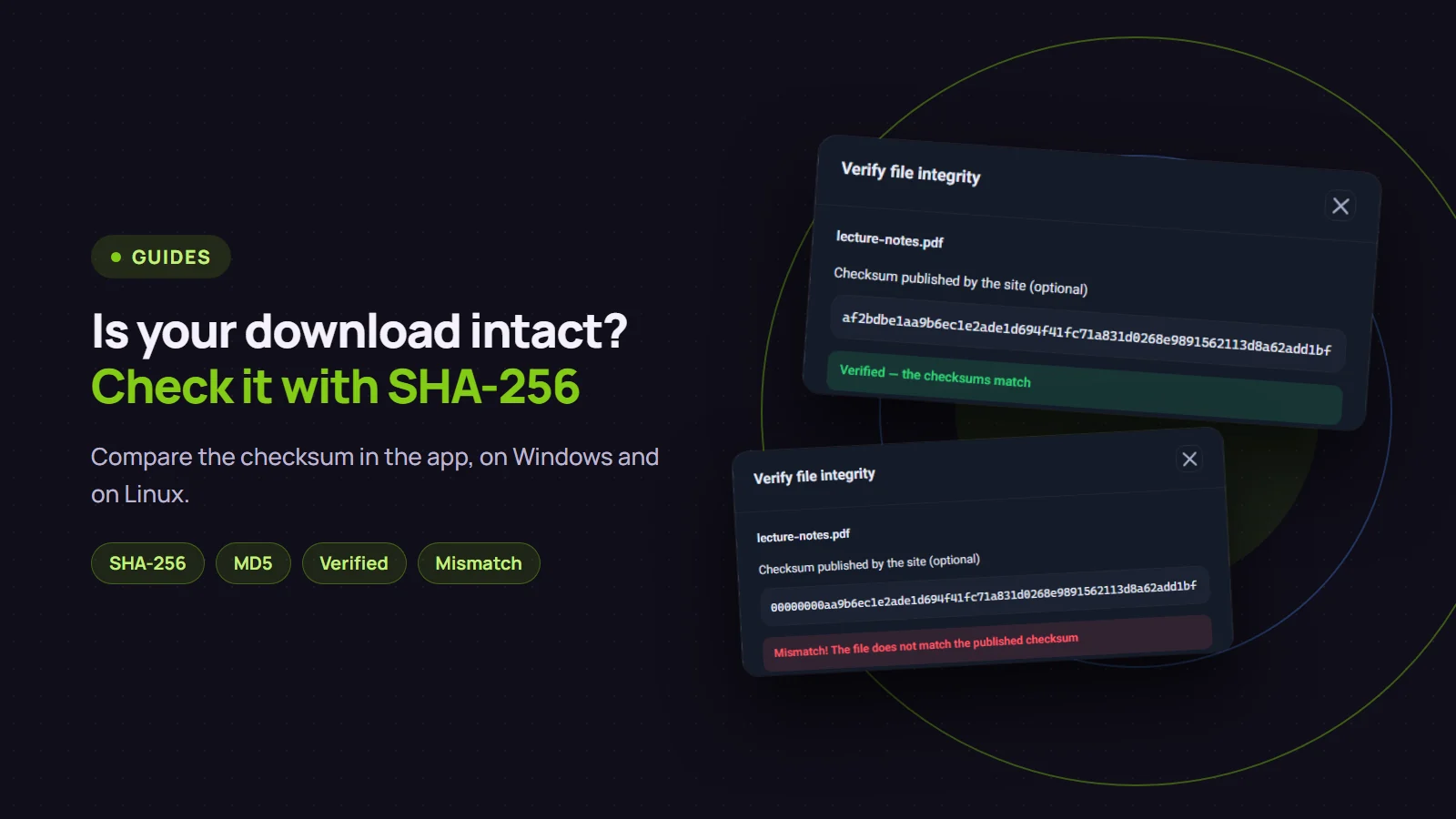
Some sites put a long string of letters and digits next to a download link. It is called a checksum, and it is usually written as SHA-256. Think of it as the file's fingerprint. If the checksum of the file you downloaded equals the one on the site, the file is complete and unchanged. If it differs, the file is damaged or was replaced. This post shows how to check it in Persian Download Manager (PDM) and without it.
Checking in PDM
- The download must be finished. Only completed downloads can be checked.
- Right-click the download and choose "Verify file integrity".
- Paste the checksum the site published into "Checksum published by the site" and click "Verify".
- Wait a moment; a big file takes a little while to process. Then one of two messages appears.
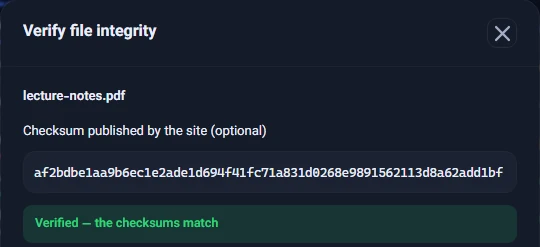
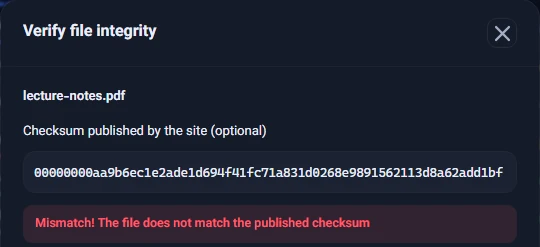
A few things make it easier:
- You do not need to know the checksum's type. PDM tells them apart by length: 32 characters is MD5, 40 is SHA-1, 64 is SHA-256 and 128 is SHA-512.
- Paste the text as it is. A whole line of
sha256sumoutput,certutiloutput with spaces between the bytes, or text such asSHA-256: ...all work; PDM finds the checksum inside. Upper or lower case does not matter. - Leave the box empty and PDM just calculates and shows the file's SHA-256.
- If you paste something with no checksum of a known length, PDM says "No checksum with a known length was found in the text" instead of guessing.
Checking without PDM
On Windows, in PowerShell:
Get-FileHash .\file.iso -Algorithm SHA256
or at the command prompt:
certutil -hashfile file.iso SHA256
On Linux:
sha256sum file.iso
Then compare the result with the site's checksum. Case does not matter, but every character must match.
It did not match. Now what?
Do not open or run the file. Try these in order:
- Check the checksum again. Sometimes it belongs to another version or file on the same page, or it was pasted incompletely.
- Download the file again. If a dropped connection damaged it, a fresh download usually fixes it. If you paused a download and the file was replaced on the server in the meantime, PDM starts over when you resume, so two versions are never glued together; more on that here.
- If it still does not match, the file was probably replaced on the server while the site kept the old checksum, or it was tampered with. Ask the site, and do not run the file until it is clear.
What the check proves, and what it does not
A checksum proves that your file is the one the checksum was written for. If the file and the checksum come from the same page and someone has tampered with that page, both change together and the check tells you nothing. So get the checksum from a place that does not depend on the file, such as the software's official page. It is also not a replacement for antivirus. When you open a finished file from inside PDM, Windows itself scans it with the antivirus you have installed; that scan is Windows' work and is separate from this checksum.
Our own files have a checksum too: each release's SHA-256 is next to the download button on the download page and on the Android page. The Android app also checks a file against its checksum when the server or site publishes one.