
Guides
Download a whole YouTube playlist at once
Download an entire YouTube playlist in one go with Persian Download Manager: pick the quality once and get numbered files in one folder.
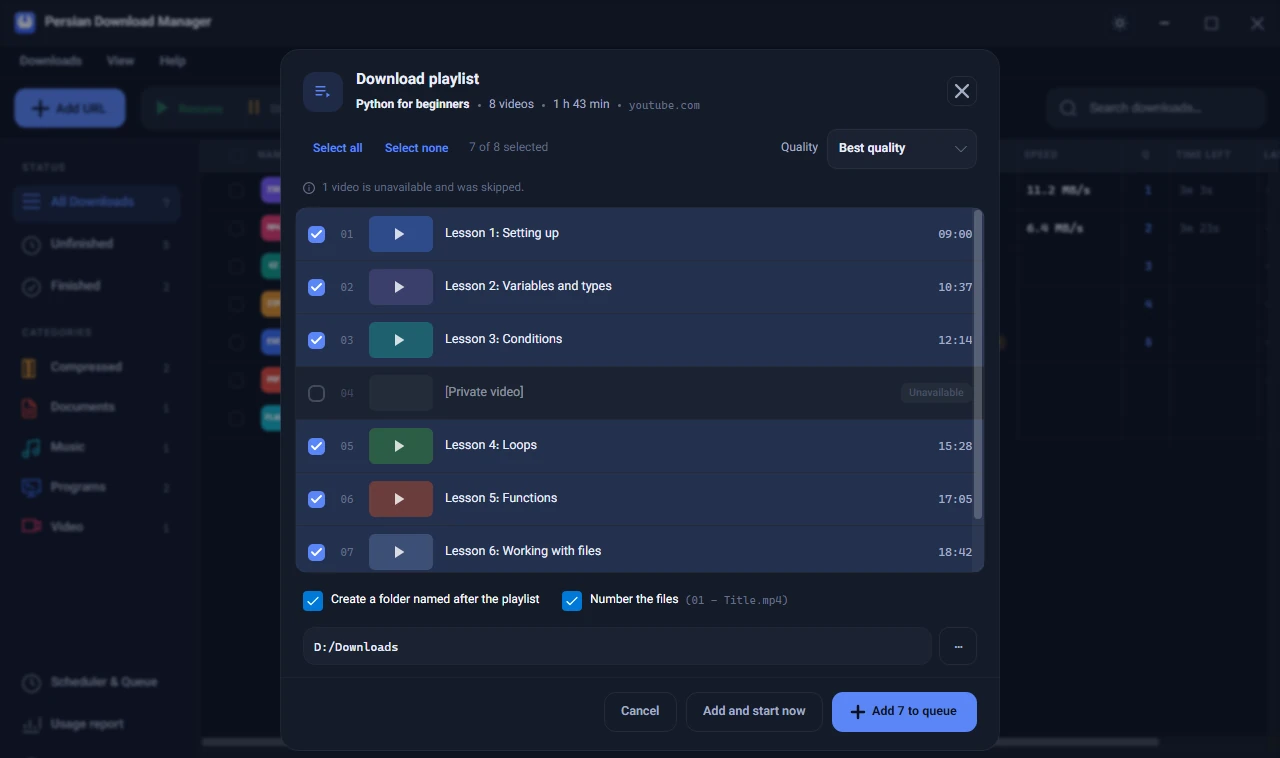
You do not have to download a playlist one video at a time. Give the playlist link to Persian Download Manager (PDM): it lists the videos, you choose which ones and in what quality, and they all join the download queue with one click. This guide walks through it step by step, with a few tips for long playlists.
Which links work
- The playlist itself — an address that starts with
youtube.com/playlist?list=. It opens the Download playlist window directly. - A video opened from inside a playlist — an address with both
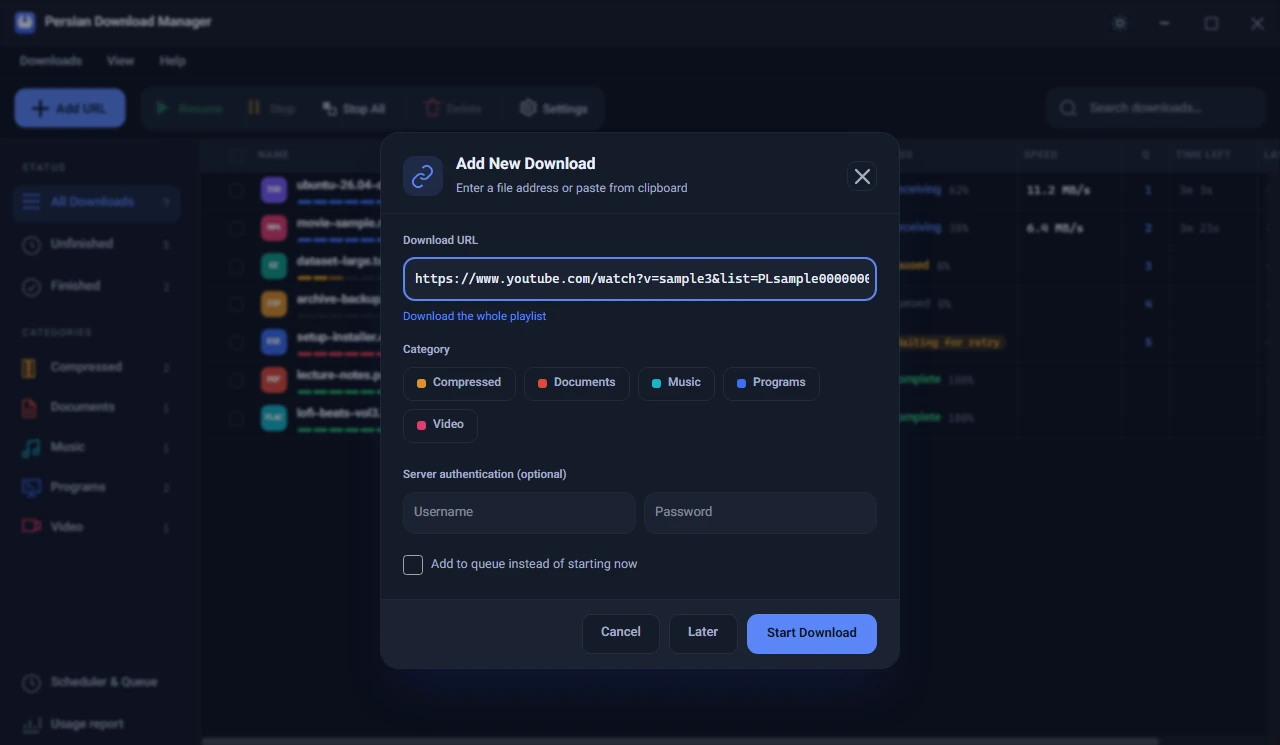
v=andlist=. On its own it downloads just that video, but "Download the whole playlist" appears under the link box. - A channel page, or its videos tab.
- Aparat playlists work the same way.
Mixes that YouTube generates for you (links with list=RD) are not real playlists and never end, so PDM treats them as a single video. Playlists are handled by the app itself: the browser extension catches single videos, so paste a playlist link into the app.
Step by step
- Open the playlist on YouTube and copy its address from the browser's address bar.
- In PDM, click "Add URL", paste the address and click "Start Download". If it is a video from inside a playlist, click "Download the whole playlist" instead.
- PDM reads the playlist for a moment, then lists the videos with each one's length and the total.
- Untick the videos you do not want. On long playlists, "Select all" and "Select none" save time.
- Pick a "Quality" and click the add button, which shows how many videos you selected — for example "Add 7 to queue". To start right away, click "Add and start now".
Which quality to choose
The quality you pick applies to every selected video:
| Option | Best for |
|---|---|
| "Best quality" | The best picture and sound as MP4, which plays on almost any device |
| "Best available" | The highest quality YouTube has, even if it is not MP4 |
| 1080p, 720p, 480p and the rest | When size matters; each one means "at most this quality" |
| "Audio only (MP3)" or "Audio only (M4A)" | Lectures, podcasts and music |
If data matters to you, 720p is usually enough for tutorials and takes less space than the higher qualities.
File names and folders
- "Create a folder named after the playlist" keeps all the videos together in one folder named after the playlist.
- "Number the files" puts each video's position in the playlist at the start of its file name, such as
01 - Title.mp4, so the folder keeps the playlist's order.
Tips for long playlists
- They do not all start at once. The videos join the queue and move forward a few at a time ("Downloads at once"), so your bandwidth is not split across dozens of files. You can also schedule the queue for the hours that suit you.
- Private or deleted videos are skipped. PDM marks them "Unavailable" and downloads the rest.
- The list shows up to 1,000 videos. For a longer playlist, PDM tells you that only the first 1,000 are listed.
- If YouTube briefly refuses a download, PDM tries again by itself. If a download stops halfway, see resuming a broken download.
"This playlist could not be read"
This message means PDM could not get the list of videos. It is usually one of these:
- The playlist is private and only its owner can see it.
- The link was copied incomplete. Copy the address again from the address bar.
- YouTube was not reachable at that moment. Wait a little and click "Try again".
Do not have PDM yet? Get the free version from the download page. To catch videos straight from your browser, see capturing downloads and videos from the browser.