
Guides
Stop your PC from sleeping while downloading
Does your PC fall asleep during an overnight download? Since 3.6, Persian Download Manager keeps it awake until downloads finish.
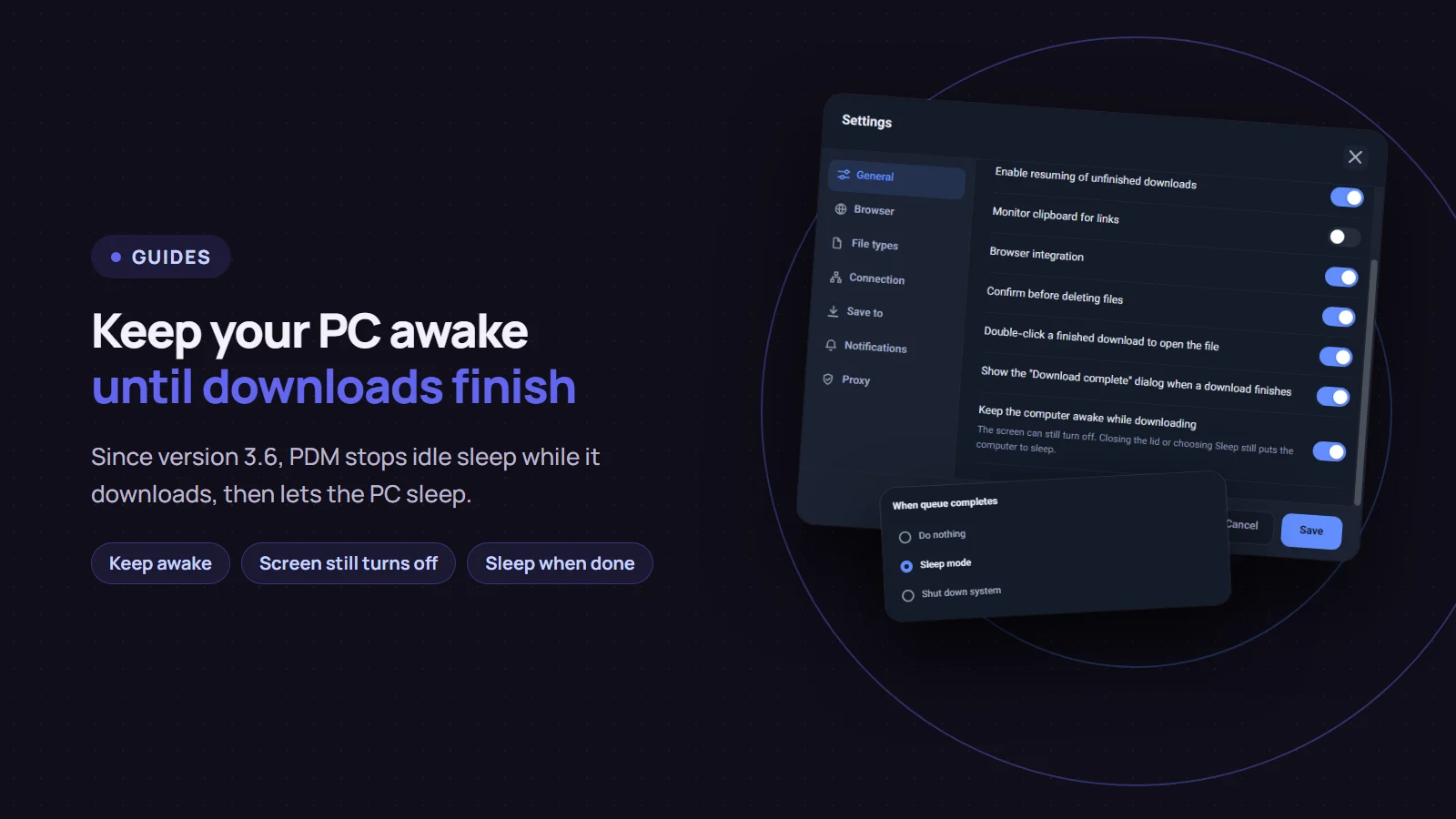
You queue downloads for the night and find them half done in the morning, because the PC went to sleep after a few idle minutes. Since version 3.6, Persian Download Manager (PDM) prevents that: while a download is running, it does not let the computer go to sleep from inactivity. Once the work is done, the PC can sleep as usual again.
The "Keep the computer awake while downloading" option
It is on by default, so there is nothing to do. To check it or turn it off:
- Open "Settings" and click "General".
- Find "Keep the computer awake while downloading".
- If you change it, click "Save".

What exactly does it do?
- The PC stays awake while a download is running, and also when a download failed and its automatic retry is due in a moment.
- It lets go when there is nothing left to do. After the downloads finish, the PC sleeps again on Windows' normal timer.
- The screen still turns off. Only the computer's sleep is held back, not the display, so no power is wasted on the screen.
- It works with the window closed. Downloads run in PDM's background part, so you can close the window and let PDM sit in the notification area.
What it does not stop
The option only blocks sleep caused by inactivity. Sleep you ask for still happens as usual:
- closing a laptop's lid
- choosing "Sleep" from the Start menu, or pressing the power button
Laptops on battery: on some newer laptops, Windows ignores the request a few minutes after the sleep timeout while on battery, and no program can override that. For overnight downloads on a laptop, plug it in.
Let the PC sleep when the downloads are done
If you want the PC to stay awake only until the downloads finish and then sleep, open "Scheduler & Queue" and choose "Sleep mode" under "When queue completes". To switch it off completely instead, see shutting down when downloads finish.

How to confirm it is working
If you want to see it for yourself: while a download is running, open "Command Prompt" as administrator and run:
powercfg /requests
Under SYSTEM you will see pdmd.exe with the reason Persian Download Manager: downloading files. When the downloads finish, that line goes away.
Good to know
- Versions before 3.6 did not have this option. If PDM offers you the update, install it.
- If the PC already slept mid-download, nothing is lost. Click "Resume" and it continues from where it stopped; see resuming a broken download.
If you do not have Persian Download Manager yet, get it free from the download page.