
Guides
Fake video files that are really programs: how to spot them
A file like movie.mp4.exe looks like a video in Windows but is a program. See how Persian Download Manager finds these files and warns you.
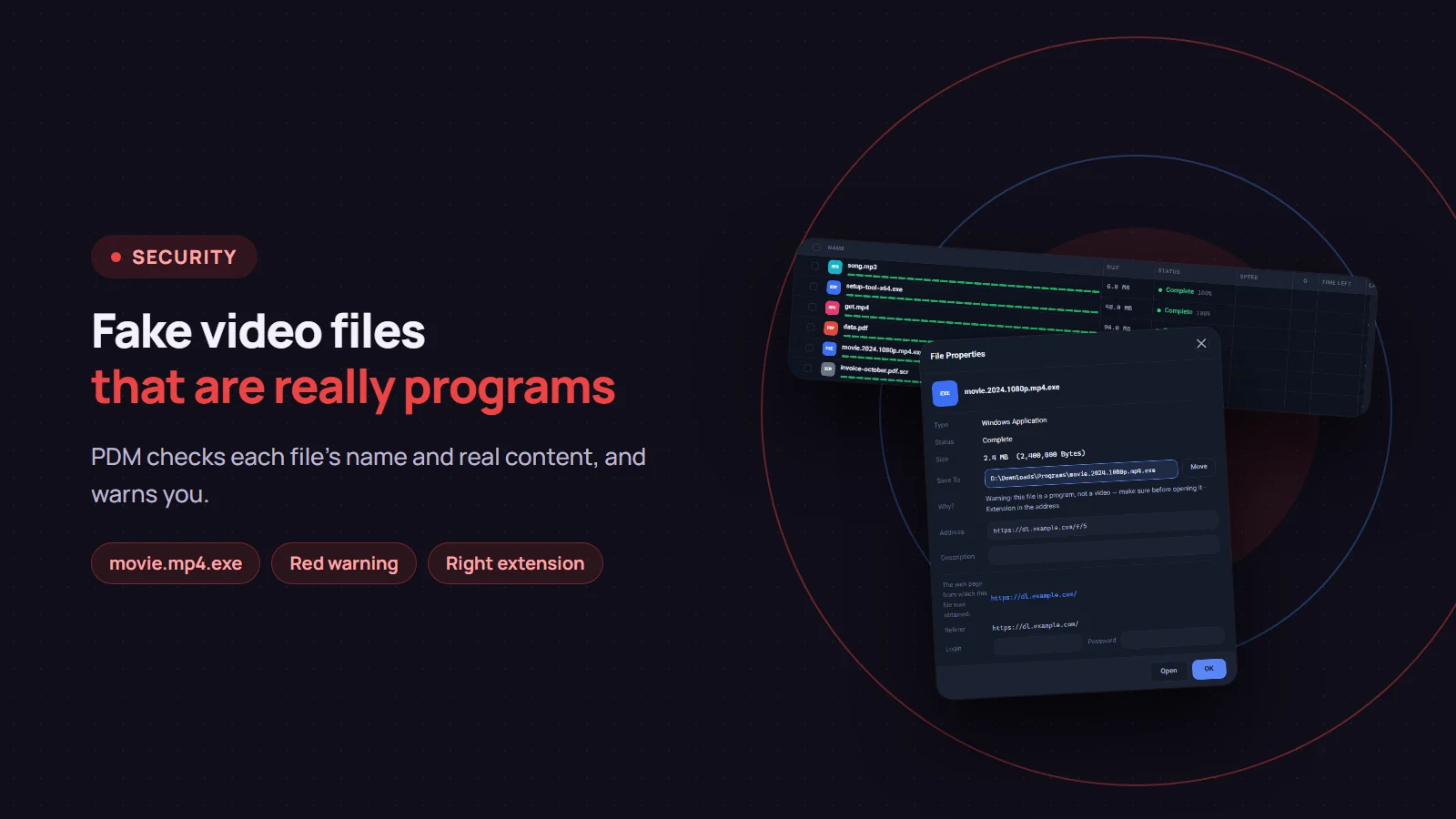
One of the oldest malware tricks is a program named like a video or a document, such as movie.mp4.exe or invoice.pdf.scr. Windows hides the last extension by default, so you only see movie.mp4, and a double-click runs a program instead of playing a film. Since version 3.4, Persian Download Manager (PDM) checks every file it downloads for this, and gives a red warning when a file pretends to be something it is not.
Why the trick works
- Windows hides extensions for known file types.
movie.mp4.exeshows up asmovie.mp4, and because.mp4is part of the name, nothing looks wrong. - The icon can be faked too. A program can carry an icon that looks like a video or a document.
- The real type is not always in the name. A file named
movie.mp4can actually be a program. Windows will not run it as it is, but it can still cause trouble later, once it is renamed or opened some other way.
What PDM checks
1. The file name, as soon as the download is added. If the last extension is one that runs something (such as exe, msi, scr, bat, cmd, com, pif, vbs, js, ps1, hta, lnk, jar or reg) and the one before it claims a video, audio, document, picture or archive, the file is treated as disguised.
2. The file's real content, once the download finishes. PDM reads the beginning of the file. If a file named movie.mp4 is really a Windows, Linux or Mac program, it is treated as disguised too.
Either way, the file goes into Programs, even if you had picked another category. If you chose the folder yourself, the file stays there and only gets the warning.
What you see
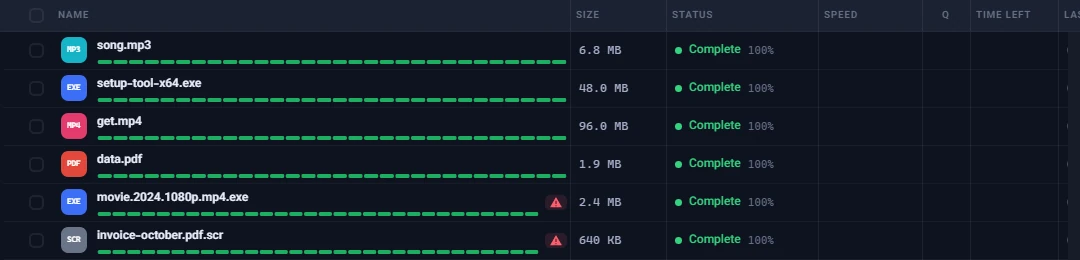
- A red warning badge next to the download. Hover over it and it reads "This file is a program pretending to be a video" (or a document, a picture and so on).
- A separate Windows notification titled "Warning: disguised file". It appears even while the PDM window is open, and even if you have turned PDM's notifications off, because it is about your safety.
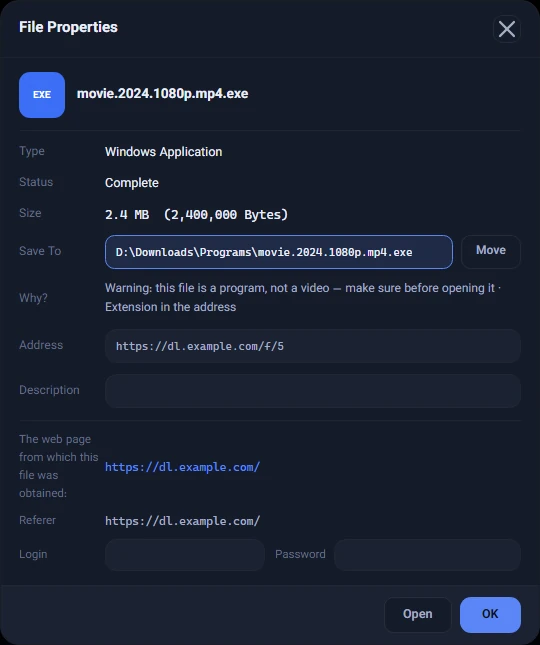
- The first line next to "Why?" in File Properties: "Warning: this file is a program, not a video — make sure before opening it".
PDM does not delete, lock or rename the file; it only tells you, and the decision is yours. An ordinary installer such as setup.exe gets no warning; the warning is only for a program that pretends to be something else.
What to do if you see the warning
- Do not open the file. If you were expecting a film or a document, this is not it.
- Check the source. If you got the file from an official site that publishes a checksum, verify the file with SHA-256.
- If you are unsure, delete it, or scan it with your antivirus before doing anything else.
This check does not replace antivirus software. It catches one specific kind of deception, not every harmful program. When you open a file from inside PDM, Windows itself also scans it with the antivirus you have installed.
The right extension for nameless files
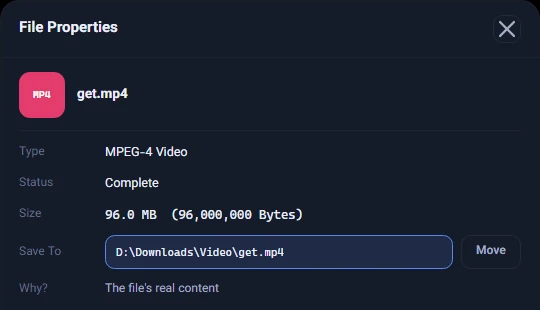
The same content check does one more useful thing. Some links deliver a file without a proper extension, like get.php or download, and Windows does not know what to open it with. Once the download finishes, PDM adds the right extension based on the file's content: get.php becomes get.mp4, and data becomes data.pdf. Next to "Why?" you see "The file's real content".
It is done carefully:
- The extension comes only from a safe list. PDM never gives a program a harmless-looking extension: a program behind
get.phpkeeps that name and simply goes into Programs. - A real, known extension is never changed.
- If a file with the new name is already there, the new name gets a number, such as
get (1).mp4, and nothing is overwritten.
A good habit: show file extensions
In Windows 11 File Explorer, open View, then Show, and turn on File name extensions; in Windows 10 the same option is on the View tab. From then on you see movie.mp4.exe with its full name.
This check is part of smart categories in version 3.4. Get the latest version from the download page.