
Guides
How to download a list of links from a text file
Put your links in a text file and give them to Persian Download Manager at once: duplicates are removed and the files land in one folder.
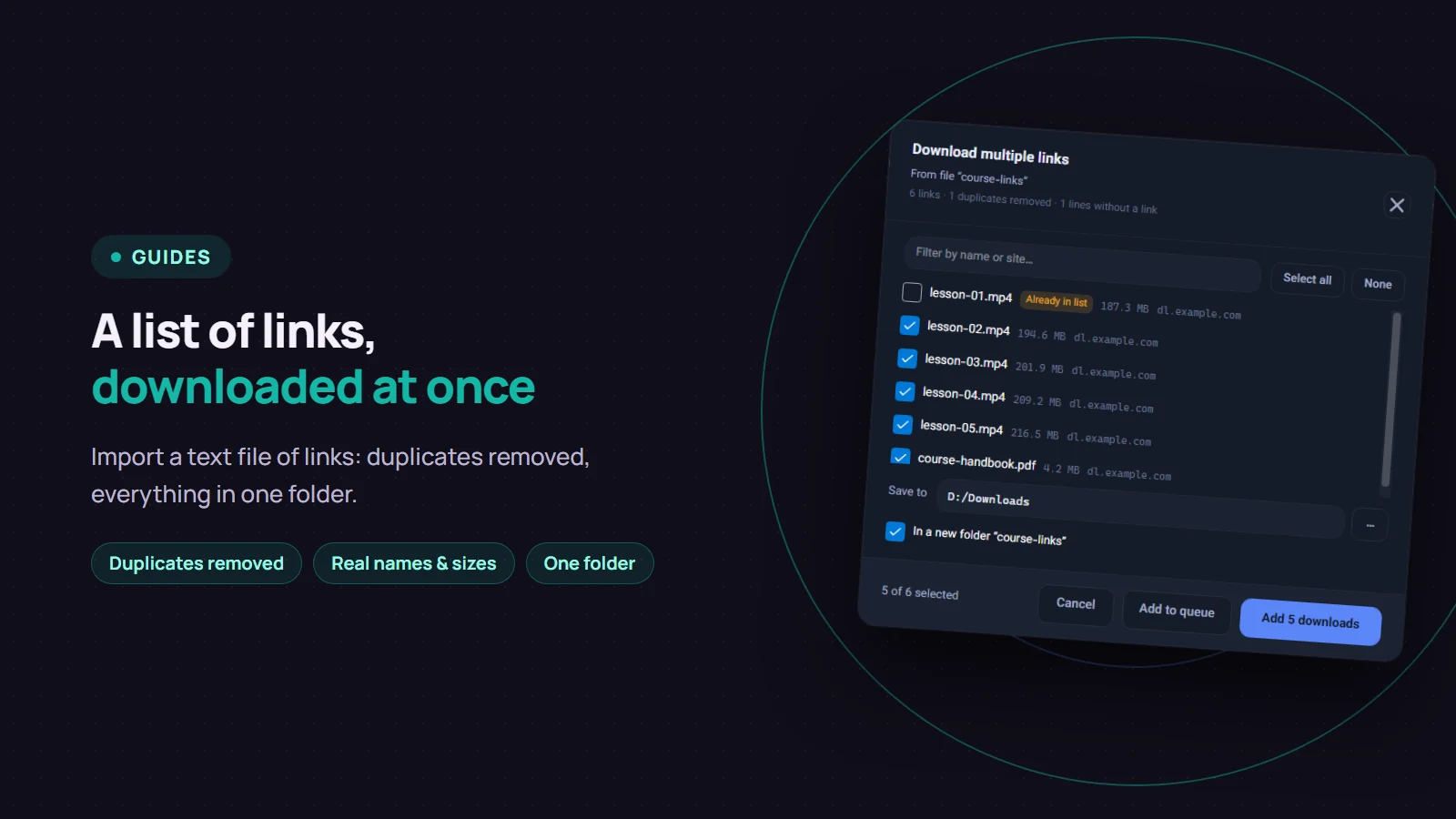
If you have dozens of download links, you do not have to add them one by one. Put them in a text file, then in Persian Download Manager (PDM) choose Downloads → "Import links from text file…". PDM lists every link with the file's real name and size, sets duplicates aside, and saves the files together in a folder named after your text file. The feature arrived in version 3.4, and it came from a user's suggestion.
Step by step
- Write the links in a text file, for example in Windows Notepad, one per line. Save it as a txt file.
- In PDM, open the Downloads menu and choose "Import links from text file…". You can also drag the file and drop it on the PDM window.
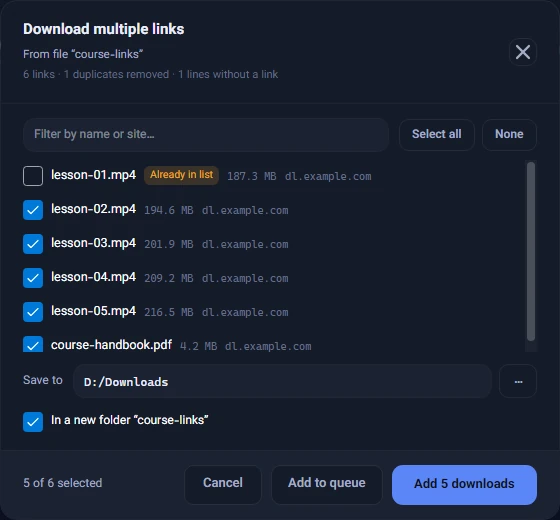
- The "Download multiple links" window opens. Untick anything you do not want.
- To start right away, click "Add … downloads"; the button shows how many files are selected. To keep them waiting in the queue for later, click "Add to queue".
What PDM does with the file
- It finds links inside sentences too. The file does not have to contain only links: a line like "Lesson 4: https://…" is read correctly, and a line without a link is skipped.
- Lines that start with
#are notes and are ignored. - It removes duplicates. Even two links that differ only in a download signature count as the same file. The top of the window tells you how many links were found, how many duplicates were removed and how many lines had no link.
- It marks files you already have. They show "Already in list" and start unticked, so nothing is downloaded twice.
- It asks the server for each file's real name and size. A link like
get.php?id=7is shown with the name the server sends, not the raw address. - It accepts video pages. A link to a video page, such as a YouTube video, is tagged "Video", and the video itself is downloaded, not the web page.
The file can be saved in Notepad's usual encodings, UTF-8 or Unicode, so text in other languages next to the links is fine.
Where the files go
"In a new folder “…”" is on by default: PDM creates a folder named after your text file inside the "Save to" folder and puts every file in it, side by side. For a course or a collection that is usually what you want, because everything stays together.
If you untick it and do not pick a folder, each file goes to its own category folder: videos with videos, books with books, and so on. That is the work of smart categories with on-device AI.
Limits
- The text file can be up to 1 MB; a larger file is not read, and PDM tells you so.
- Up to 500 links are imported from one file. If there are more, only the first 500 come in, and the top of the window says so.
- Only
httpandhttpslinks are accepted. Network folder paths and local file paths are ignored. - If the file has no download links at all, you see "No download links were found in this file."
To grab several links from a web page in your browser, see the batch links guide. Get version 3.4 from the download page.