
Guides
Download Manager vs Browser Downloads: Which Is Better?
Browser downloads are fine for small files, but large or interrupted downloads need more. Compare speed, resume, queues and scheduling, and pick the right tool.
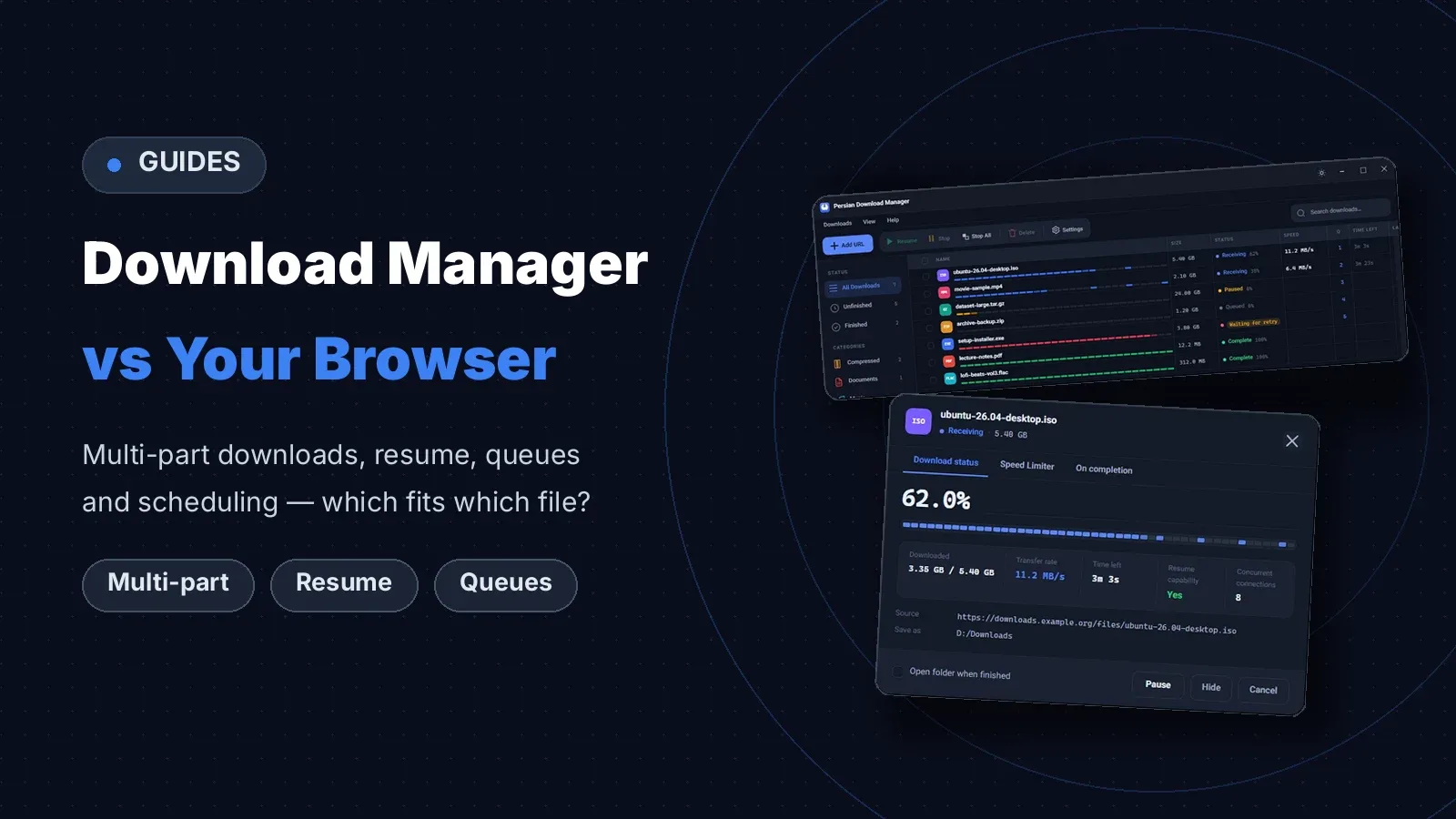
Every file you download starts in the browser. You click a link, and the download begins. For a small file, that is enough. But when the file is large, the connection is shaky, or you want several files at once, a download manager downloads it faster, more reliably and in better order. This post puts the two ways side by side, so you can see where each one is better — and when a separate download program is worth installing. If you are not sure yet what a download manager does, start with what a download manager does and how it works.
At a glance
A browser is built to show web pages, and downloading is only a side job for it. That is why a browser download is simple: one connection, one file, and if everything goes well, the file arrives complete. A download manager is built for this one job only. It fetches a file in several parts, puts downloads in a queue, and picks up where it stopped if something goes wrong. The main difference is this: a browser starts a download, while a download manager manages it.
The main differences
1. Multi-part downloads and speed
A browser usually fetches each file over a single connection. If the server gives each connection only a little speed, that one connection becomes your speed limit. Persian Download Manager fetches a file in several parts over several connections at once: up to 8 connections per file by default, and up to 16 if you want. Your final speed still depends on your connection and the server, and no program makes your internet line faster. The difference is that the same speed is used better.
2. Resuming after a drop
This is where the difference is clearest. If the connection drops, the PC goes to sleep, or the browser closes, a browser download cannot always continue from where it stopped, and sometimes it has to start again from the beginning. In Persian Download Manager, the download continues from the point it reached, as long as the server supports resuming. For large files, that one difference can save hours. An example is in how to download large files reliably.
3. Queues, scheduling and many files at once
A browser has no queue and no scheduling. Every file starts the moment you click it, and all the files compete for the same bandwidth. Persian Download Manager puts downloads in a queue, so they run one by one or in the order you choose. With scheduling, you can say a download should run only at an hour when your connection is freer or cheaper — for example, overnight. How to set that up is in how to download at night on a cheaper data plan.
4. Catching downloads from the browser and sorting files
With the official extension for Chrome, Edge and Firefox, a download you start in the browser goes straight to Persian Download Manager. You do not need to copy the link or paste it anywhere else. After the download, the program puts each file in the right folder by itself, and you can find it later with smart search. In a browser, files usually all go to one downloads folder, and finding an old file becomes a job of its own. The full list of these jobs is in 10 uses of a download manager on a PC.
5. Expired links and speed limits
Some sites give out temporary links, and if a link expires during a download, a browser download usually starts again from the beginning. In Persian Download Manager, you can give the same download a fresh link, so the part already downloaded is not wasted. The other difference is a speed limit: if you do not want a download to take the whole connection and slow down browsing or a video call, you can limit the download speed. A browser has no such setting.
Download manager vs browser downloads: comparison table
| Compared | Browser download | Persian Download Manager |
|---|---|---|
| Connections per file | Usually one connection | Up to 8 by default, up to 16 |
| Resuming an interrupted download | Not always possible | Yes, if the server supports it |
| Queue and scheduling | No | Yes |
| Renewing an expired link | No | Yes |
| Speed limit | No | Yes |
Which one should you choose?
The answer depends on the size of the file and the state of your connection. For a small file — a document of a few megabytes on a stable connection, for example — a browser download is enough, and installing a separate program adds nothing. But if the file is several hundred megabytes or several gigabytes, your connection sometimes drops, you want several files at once, or you want a download to run at a set hour, a download manager is the better choice. The simple rule is: the larger the file and the less stable the connection, the more download management matters.
What you need
- Windows: Persian Download Manager runs on Windows 10 and 11 (64-bit), and installing it needs no administrator rights.
- Linux and Android: there is a Linux version for 64-bit Linux and an Android version for Android 8 and later.
- Browser: extensions for Chrome, Edge and Firefox, so a download from the browser goes straight to the program.
- A supporting server: multi-part downloads and resuming only work when the server supports them too. Most file servers do.
Frequently asked questions
Do I need a download manager for a small file?
No. For a small file on a stable connection, a browser download is enough. A download manager is worth it when the file is large, several files download at once, or the connection is unstable.
What should I do if a browser download stops?
First, look for a resume button in the browser. If the download starts from the beginning, or there is no button, get the link again and give it to Persian Download Manager this time, so it continues from where it stopped.
Does a download manager make my internet faster?
No, it does not change the speed of your line. What it does is make better use of the speed you have, especially when a server gives each connection only a little speed and a multi-part download gets around that limit.
Does Persian Download Manager run on Windows 7?
No. Persian Download Manager is built for Windows 10 and 11 and does not run on Windows 7 or 8. If your Windows is older, a browser download is the only option on that same system.
If you download large files, or your connection sometimes drops, download Persian Download Manager and see the difference on your next file.