Installing the browser extension
The PDM extension hands download links and videos from your browser to the app. Ordinary downloads do not need it.
1
Open the setup assistant
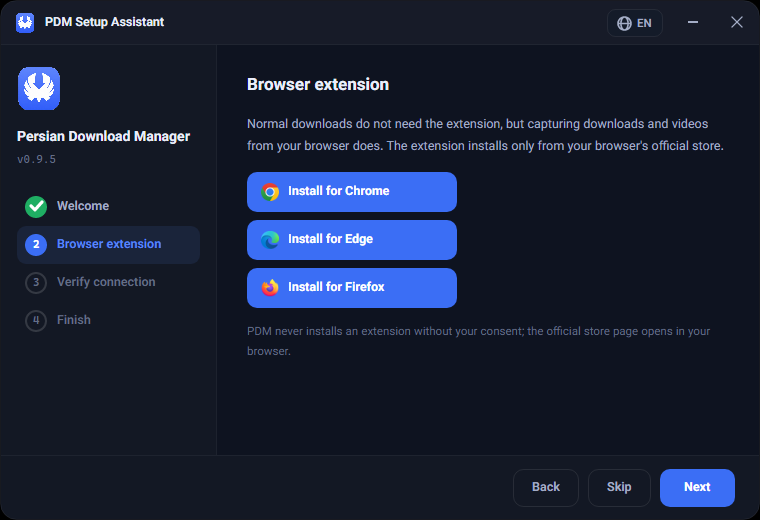
It opens automatically on first run, and any time from Settings → Browser → "Run setup assistant". On the "Browser extension" step, choose your browser.
2
Install from the official store
The button opens that browser's official store page, where you install it yourself. Chrome and Edge use the Chrome Web Store, Firefox uses Firefox Add-ons, and Brave uses the Chrome extension.
PDM never installs an extension without your approval — it only opens the official store page.
3
Pin the extension
After installing, pin the PDM icon to your browser toolbar so it is always within reach and you can see the connection status at a glance.
4
Privacy
The extension cannot read your browsing history, cookies or passwords. All it does is hand PDM the link you choose.
Was this article helpful?
Thanks for the feedback.