
Installing Persian Download Manager on Windows
From downloading the installer to first launch. PDM installs for your user account and never asks for administrator rights.
1
Download the installer
Get the installer only from the official download page on this website. It is roughly 82 MB and contains every component — there are no other prerequisites to install.
PDM-Setup.exe
2
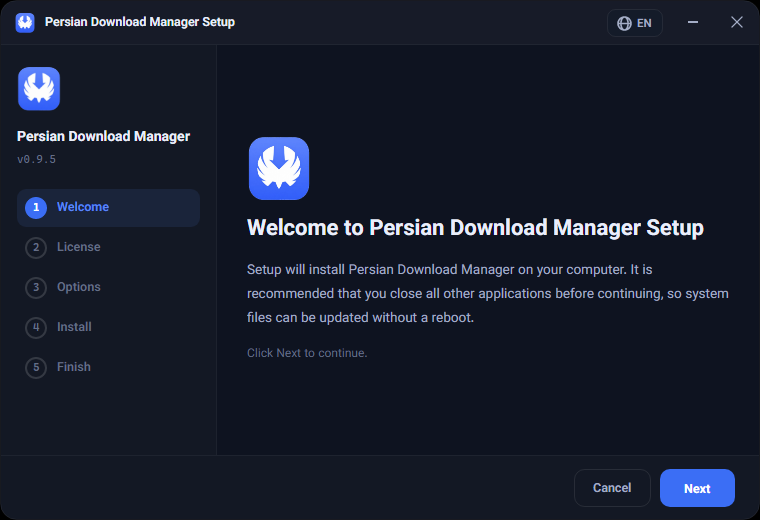
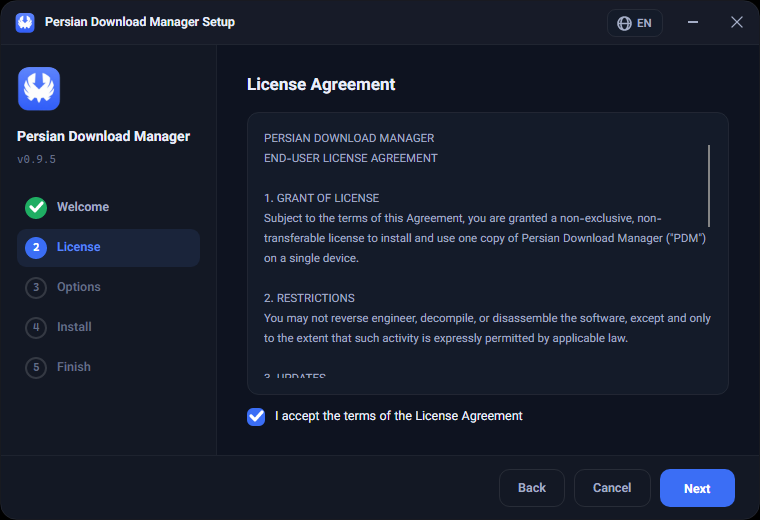
Run the installer
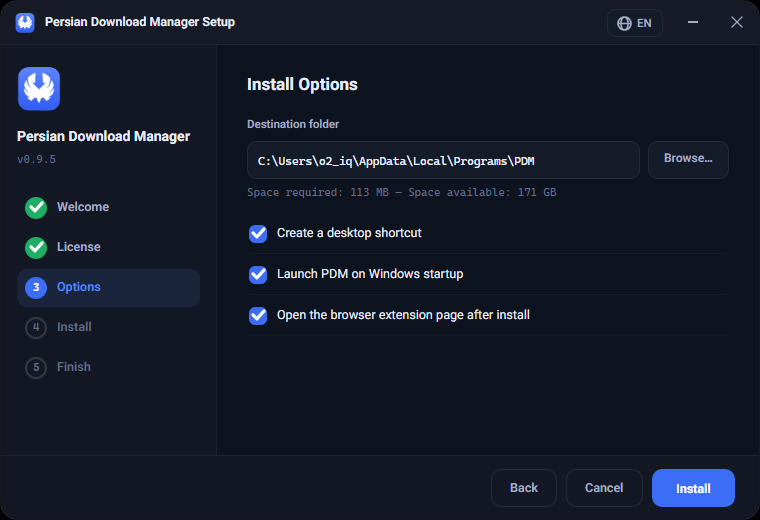
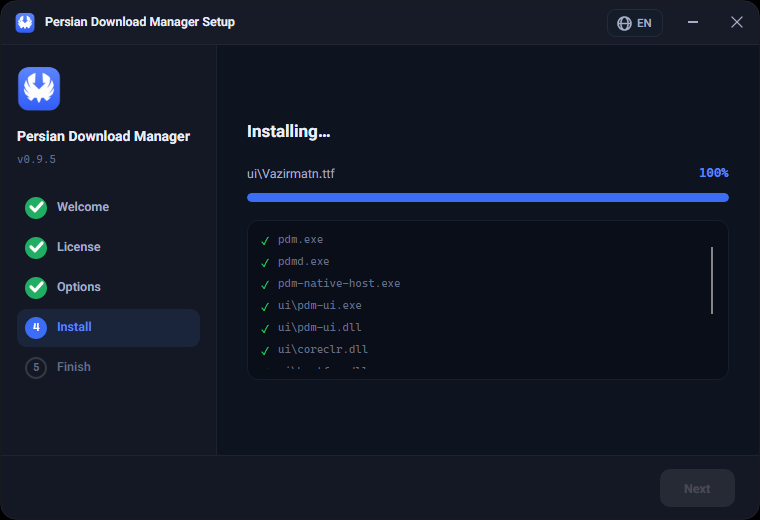
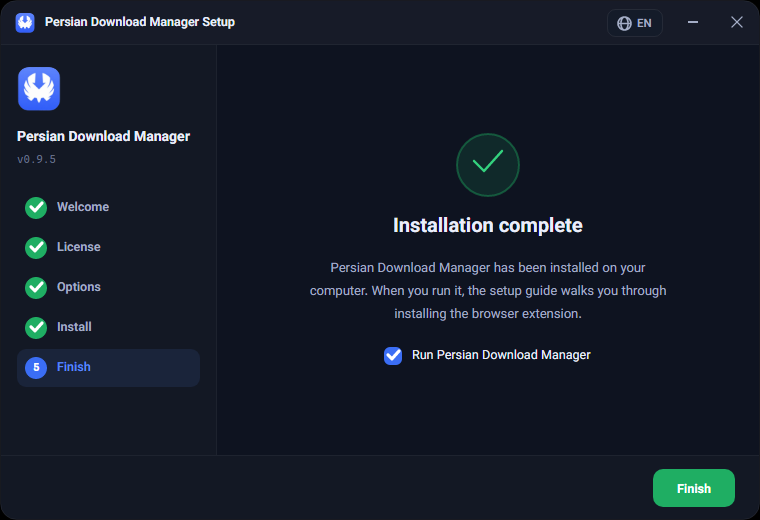
Double-click the file and wait for the progress bar to finish. PDM installs inside your user profile, so no User Account Control prompt appears.
%LOCALAPPDATA%\Programs\PDM
3
First launch
PDM starts automatically once installed and opens the setup assistant, which installs the browser extension and verifies the connection. You can skip it and run it later from Settings.
Was this article helpful?
Thanks for the feedback.